Auto Screenshot to Capture Screenshots Automatically
Automatically capture screenshots of a selected rectangular screen area at configured time intervals. You can even configure audible alerts to notify you when a screenshot is captured, or ignore capturing a screenshot if the monitored screen area has not changed, acting as a screen change detector. This software is handy when you wish to monitor a rectangular screen area and be notified of screen changes with audible alerts and optional screenshot captures. This Auto Screenshot software utility is available for Windows 10, Windows 11, etc., and is offered on a free-to-download trial basis.
Free Trial of Auto Screenshot Software for Windows
Download and try out this digitally signed Auto Screenshot software on your 64-bit Windows 10 or Windows 11 computer. The free trial has no functional limitations apart from a usage duration limit. After the free trial, you can pay $7.89 USD to use this Auto Screenshot software for up to 6 months on one desktop or laptop computer.
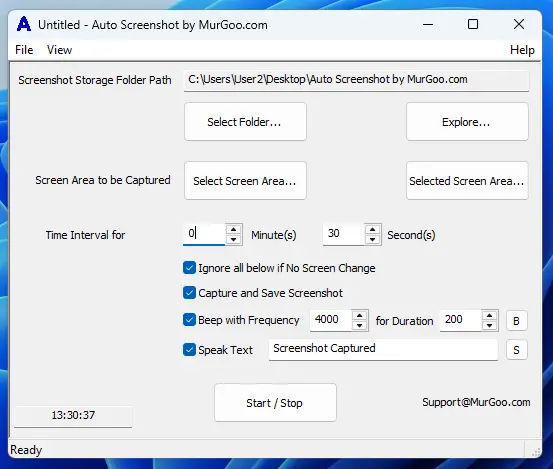
The Auto Screenshot software application allows you to capture screenshots of a configurable rectangular screen area at configurable time intervals. Audible alerts can be configured to sound whenever a screenshot is captured. A text-to-speech audible alert is available, which can speak custom text using the default voice configured on your computer. If you prefer a simple beep, you can configure the frequency and duration of the sound.
Auto Screenshot also allows you to skip saving screenshots when the monitored screen area remains exactly the same. This is handy when you want to track changes in a rectangular screen area. If you would like additional features for monitoring screen changes, you can try out Screen Monitor Software, which offers advanced features for screen change detection.
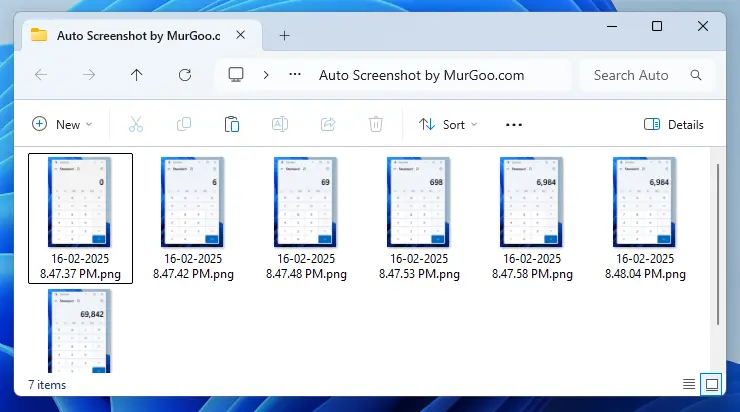
All software parameters can be saved in a data file and loaded at a later time. By default, screenshots are saved in a folder on your Desktop, but you can easily change the destination folder. Saved screenshots are automatically named according to the current date and time. The time interval between screen captures is configurable in minutes and seconds. The current time is displayed in the bottom-left corner of the main screen. To select the screen area to capture, click the "Select Screen Area" button and drag your mouse over the desired region. You can also highlight the selected screen area with a semi-transparent color overlay by clicking the "Selected Screen Area" button.
This Auto Screenshot software utility for Windows 10 and Windows 11 includes a built-in Duplicate File Finder, which helps locate duplicate image files based on file size and the SHA-256 hashing algorithm. The Duplicate File Finder allows you to analyze screenshots captured in a selected folder, making it easy to distinguish unique images. You can view screenshots of Auto Screenshot captured on a Windows 11 PC to see all the features offered by this utility.
Frequently Asked Questions about Auto Screenshot Software
Here you can find quick questions and answers to easily understand the features of Auto Screenshot for Windows 10 and Windows 11. Click any question below to reveal its answer.
Can Auto Screenshot capture a selected screen area?
Yes, you can capture a specific, customized area of your screen. This gives you precise control over your captures instead of saving the entire desktop.
Key benefits of targeted area selection include:
Focused Content: Isolate and track only the specific application window, form, or region you need.
Storage Efficiency: Save significant disk space by cropping out unnecessary desktop background elements.
Automatic Saving: Every cropped capture saves directly into your designated local storage folder.
Can Auto Screenshot be used as a screen change detector?
Yes, Auto Screenshot functions fully as an automated screen change detector. The software actively monitors your specified screen region and triggers immediate events only when changes occur.
Configurable automation features include:
Smart Capture: Saves a screenshot automatically the exact moment visual content changes.
Audio Beeps: Sounds an immediate audible alert to capture your attention instantly.
Text-to-Speech: Plays a custom spoken voice alert detailing the specific event.
Resource Savings: Prevents duplicate files by completely pausing capture activities when the screen is static.
Is a free trial download available for this software utility?
Yes, a free trial is fully available for download. You can test the software directly on your device before making a decision.
Trial and download details include:
Instant Download: Access the trial package directly from the download link provided above.
OS Compatibility: Works seamlessly on both Windows 10 and Windows 11 computers.
Risk-Free Evaluation: Evaluate all features in your own environment to ensure it completely meets your needs.
What are the system requirements?
Auto Screenshot is a lightweight native application designed for modern Windows systems.
The explicit technical requirements and specifications include:
Operating System: Compatible with 64-bit (x64) versions of Windows 10 and Windows 11.
Permissions: Requires administrator access during installation.
Dependencies: Requires Microsoft Visual C++ Redistributable (x64) installed on your system.
Installer Package: Distributed as a secure .msi setup file under 1.5 MB in size (v1.1).
Resource Footprint: Consumes minimal CPU and under 10 MB of RAM, built natively in C++ using MFC libraries.
How to take screenshot in Windows 11 and save it automatically
You can automatically capture and save screenshots in Windows 11 by using dedicated utilities like Auto Screenshot or native keyboard shortcuts.
Method 1: Using Auto Screenshot Utility
Download and open the background application from download link above.
Select the capture area by defining specific screen coordinates or choosing the full screen.
Set the time interval to dictate how frequently the software should automatically capture your screen.
Choose the destination folder where your files will be saved automatically with custom timestamp names.
Enable advanced logging features like "Skip saving identical images" to optimize storage capacity.
Method 2: Using Built-in Windows Shortcuts
Windows Key + Print Screen (PrtScn): Instantly captures your entire screen and automatically dumps the file into your Pictures > Screenshots directory.
Windows Key + Shift + S: Launches the advanced Snipping Tool region selector, copying the capture directly to your clipboard for instant saving or pasting.
Can captured screenshots be uploaded automatically by this software?
No, automatic cloud or server uploading is not supported. This design choice ensures maximum privacy and data security.
How the software handles your files:
Local Storage: Every captured screenshot is stored directly on your computer's hard drive.
Designated Folder: You can completely customize and change the destination directory in the settings.
Full Control: No screenshot ever leaves your device without your explicit manual action.
Does recording a video offer better accuracy than capturing screenshots?
Video provides a complete continuous history, but periodic screenshots are often more practical. The right choice depends on your specific balance of accuracy and storage space:
Video Recording: Captures 100% of real-time movements and fluid actions without missing micro-interactions.
Periodic Screenshots: Captures essential activity over time (e.g., every 1 minute) while using significantly less disk space.
Storage Efficiency: Saves gigabytes of storage over a standard workday by eliminating repetitive, static frames.
How do I start or stop automated screenshot capture?
You can completely control automated capturing using a single toggle button on the main screen.
Follow these quick actions to manage your capture sessions:
Start Capturing: Click the Start button to begin taking screenshots at your chosen interval.
Stop Capturing: Click the same button (which toggles tracking status) while a session is active to pause the process.
Exit Safely: Close the application window to automatically terminate all active background capturing.
Does Auto Screenshot work on Windows 10 and Windows 11?
Yes, Auto Screenshot is fully compatible with both Windows 10 and Windows 11.
System requirements and installation details include:
System Architecture: Requires a 64-bit (x64) version of Windows.
Installer Type: Distributed as a standard, secure .msi setup file.
Deployment: Supports easy administrative deployment across multiple computers.
Is Auto Screenshot safe to use?
Yes, Auto Screenshot is completely safe. The software is built with the following security protections:
Digitally Signed: Verified by Daanav Softwares to ensure the code has not been altered.
Malware Free: Every software release is fully scanned via VirusTotal across multiple antivirus engines.
Verified Trust: Trusted automatically by Microsoft SmartScreen protections.
Official Store Release: Thoroughly vetted and available directly on the Microsoft Store.
What are the common use cases for this software?
Software Testing: Log background application errors or user interface changes over time.
Data Tracking: Automatically record live stock charts, sports scores, or queue progressions.
Storage Efficiency: Capture periodic images instead of saving large video files.
Change Detection: Receive alerts and save visual logs whenever content in a monitored screen area changes.
How do I uninstall this software?
You can completely remove the Auto Screenshot application by following these steps:
Open your computer's Settings menu.
Navigate to Apps > Installed Apps.
Locate Auto Screenshot in the list.
Click the three dots (or right-click) and select Uninstall.
What if I have another question about Auto Screenshot software?
You can email your question to Support@MurGoo.com. We aim to respond within 24 to 48 hours, taking into account international time zones and holidays.