Main Capture Window on Windows 11
Configure your capture interval in minutes and seconds, define a rectangular screen region, toggle screen change detection, and monitor the live clock from the main Auto Screenshot dashboard.
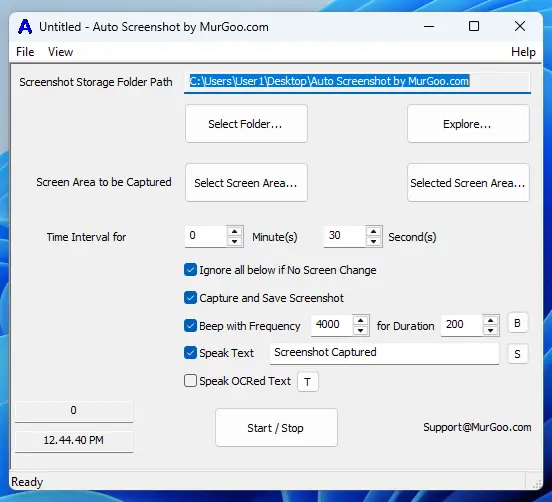
Explore the interface and features of Auto Screenshot captured on Windows 11. These screenshots demonstrate how to configure timed screen area captures, detect identical frames, run Optical Character Recognition (OCR), and manage saved PNG files. Ready to test it on your PC? Download the free 64-bit trial or visit the homepage and FAQ page.
Configure your capture interval in minutes and seconds, define a rectangular screen region, toggle screen change detection, and monitor the live clock from the main Auto Screenshot dashboard.
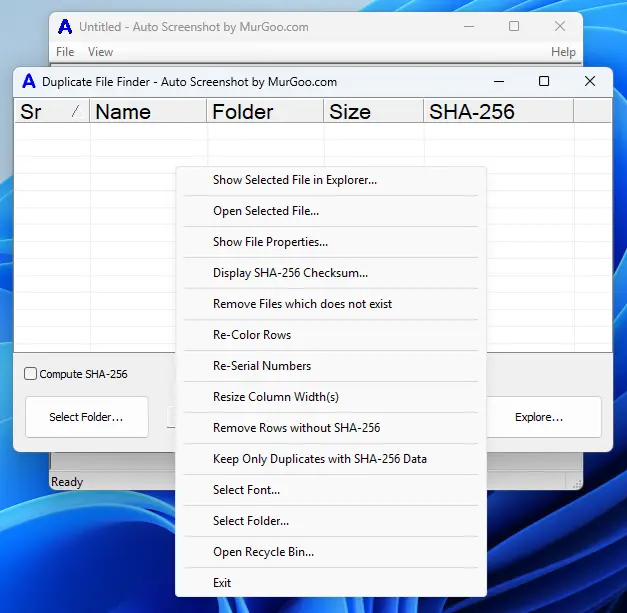
The built-in Duplicate File Finder scans any selected folder for identical screenshot images organized by file size and SHA-256 cryptographic checksum. Even if you captured frames before enabling screen change skipping, you can quickly locate and review duplicate files from the right-click context menu.
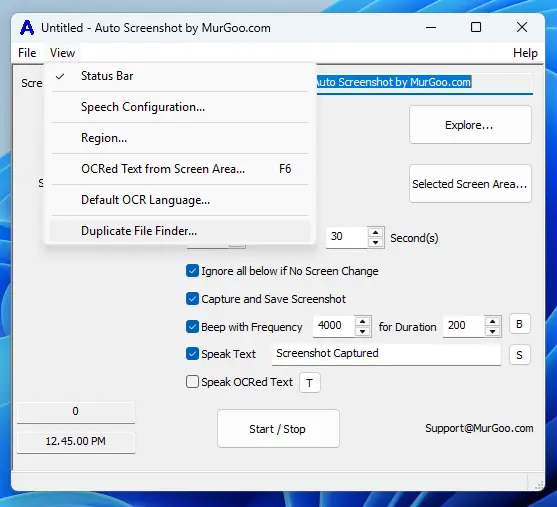
Beyond automated interval captures, Auto Screenshot includes Text-to-Speech alerts, Optical Character Recognition (OCR), and custom audio beep alerts. Open the View menu to choose Windows speech voices, check your active OCR language, launch the Duplicate File Finder, and customize application preferences.
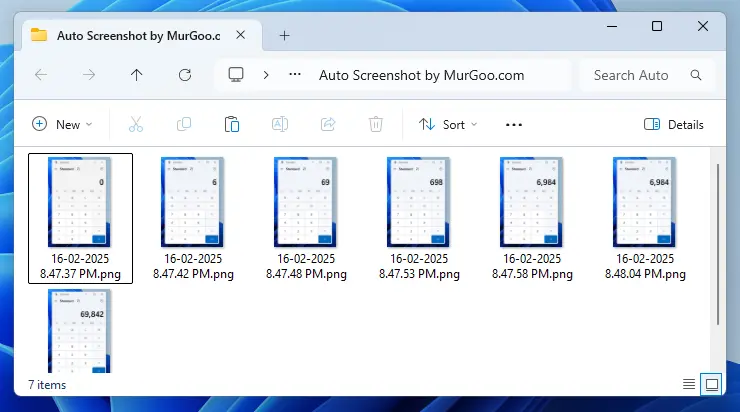
Every captured image is stored locally as a PNG file automatically named with the exact capture date and time. Sorting the destination folder chronologically in Windows Explorer makes it effortless to audit visual activity over minutes, hours, or an entire workday.
Download the digitally signed 64-bit installer (1.5 MB) or check system requirements in the FAQ.